# Linux Documentation
This article offers documentation about using Linux in general as a Cloud Support & Media Engineer.
{{< admonition >}}
Do not run this commands in a productive environment.
{{< /admonition >}}
**Let's face it:**
I have been trying to really learn linux and understand it for the last 5 years. I have made some progress, at the point that in my working computer I can not work without a linux terminal to do my troubleshooting stuff.
However, I am just scratching the tip of the iceberg. I don't want to go deeper inside because I will need a new life to learn it, but at least I just want to feel comfortable with the fundamentals".
With that said, I will follow the quote of Linus Torvalds:
> Talk is cheap. Show me the code.
>
> {{< style "text-align: right;" >}}-- _Linus Torvalds_{{< /style >}}
Without further delay, let us go over the main elements of Markdown and what the resulting HTML looks like!
{{< admonition tip >}}
:(far fa-bookmark fa-fw): Bookmark this page for easy future reference!
{{< /admonition >}}
## 1 curl
### The basis
curl command:
```bash
curl -vo /dev/null https://google.com
```
From the output, we can see the headers that we are sending (The ones that begins with `>`) in our **HTTP/S** connection to the origin, and the response headers from the origin. In the above example, from the output we can see that the headers we sent to google.com are:
```
> GET / HTTP/2
> Host: google.com
> user-agent: curl/7.81.0
> accept: */*
```
And the once that starts with `<` are the response headers from the Origin:
```
< HTTP/2 301
< location: https://www.google.com/
< content-type: text/html; charset=UTF-8
< content-security-policy-report-only: object-src 'none';base-uri 'self';script-src 'nonce-EYfqVJPZeMfTFfdJG07Haw' 'strict-dynamic' 'report-sample' 'unsafe-eval' 'unsafe-inline' https: http:;report-uri https://csp.withgoogle.com/csp/gws/other-hp
< reporting-endpoints: default="//www.google.com/httpservice/retry/jserror?ei=iy2gabPwFOSs0PEP8aS84AI&cad=crash&error=Page%20Crash&jsel=1&bver=2384&dpf=lSp35wFxjKhjSWH5zgcgbmxlUXPi2wJZbVymb2X7kZU"
< date: Thu, 26 Feb 2026 11:24:59 GMT
< expires: Sat, 28 Mar 2026 11:24:59 GMT
< cache-control: public, max-age=2592000
< server: gws
< content-length: 220
< x-xss-protection: 0
< x-frame-options: SAMEORIGIN
< alt-svc: h3=":443"; ma=2592000,h3-29=":443"; ma=2592000
```
The most important might be the `HTTP/2` status code response, which is a [301 Moved Permanently](https://developer.mozilla.org/en-US/docs/Web/HTTP/Reference/Status/301) (redirection response).
### Forward redirect -L
With that said, if you want to follow a redirect response, you can make use of the `-L` flag. In the above example it will be:
```bash
curl -vo /dev/null -L https://google.com
```
**Output:**
```
> GET / HTTP/2
> Host: google.com
> user-agent: curl/7.81.0
> accept: */*
...
< HTTP/2 301
< location: https://www.google.com/
< content-type: text/html; charset=UTF-8
< content-security-policy-report-only:
...
< date: Fri, 27 Feb 2026 03:37:14 GMT
< expires: Sun, 29 Mar 2026 03:37:14 GMT
< cache-control: public, max-age=2592000
< server: gws
< content-length: 220
< x-xss-protection: 0
< x-frame-options: SAMEORIGIN
< alt-svc: h3=":443"; ma=2592000,h3-29=":443"; ma=2592000
```
It's making the first connection to google.com and then the response is forwarding the connection to www.google.com:
```
* Issue another request to this URL: 'https://www.google.com/'
* Trying 142.250.76.100:443...
* Connected to www.google.com (142.250.76.100) port 443 (#1)
...
> GET / HTTP/2
> Host: www.google.com
> user-agent: curl/7.81.0
> accept: */*
...
< HTTP/2 200
< date: Fri, 27 Feb 2026 03:37:14 GMT
< expires: -1
< cache-control: private, max-age=0
< content-type: text/html; charset=ISO-8859-1
< content-security-policy-report-only: object-src 'none';base-uri 'self';script-src 'nonce-mBEeYs33lb7d5SlBoYGLeg' 'strict-dynamic' 'report-sample' 'unsafe-eval' 'unsafe-inline' https: http:;report-uri https://csp.withgoogle.com/csp/gws/other-hp
< reporting-endpoints: default="//www.google.com/httpservice/retry/jserror?ei=ahGhaZO7NsughbIPg-jOqAI&cad=crash&error=Page%20Crash&jsel=1&bver=2384&dpf=jtAPAEfitwVC859gVg16JznWei3gRfkiR_8fdje5jKQ"
< accept-ch: Sec-CH-Prefers-Color-Scheme
< p3p: CP="This is not a P3P policy! See g.co/p3phelp for more info."
< server: gws
< x-xss-protection: 0
< x-frame-options: SAMEORIGIN
< set-cookie:
...
< alt-svc: h3=":443"; ma=2592000,h3-29=":443"; ma=2592000
< accept-ranges: none
< vary: Accept-Encoding
<
```
### Host headers flag -H
In your cURL request you can pass host headers. Here is an example where we are passing one header, the `host` header with the value `www.example.com`:
```bash
curl -H 'Host: www.example.com' http://server-ip-address/
```
The HTML looks like this:
```html
h2 Heading
h3 Heading
h4 Heading
h5 Heading
h6 Heading
```
{{< admonition note "Heading IDs" >}}
To add a custom heading ID, enclose the custom ID in curly braces on the same line as the heading:
```markdown
### A Great Heading {#custom-id}
```
The HTML looks like this:
```html
A Great Heading
```
{{< /admonition >}}
## Byobu
**Byobu** is a text window manager and terminal multiplexer.
### keybindings:
- **Shift+F1** = Help menu
- **F2** = Create a new window
- **Shift-F2** Create a horizontal split
- **Ctrl-F2** Create a vertical split
- **Ctrl-Shift-F2** Create a new session
- **F3/F4** Move focus among windows
- **Alt-Left/Right** Move focus among windows
- **Alt-Up/Down** Move focus among sessions
- **Shift-Left/Right/Up/Down** Move focus among splits
- **Shift-F3/F4** Move focus among splits
- **Ctrl-F3/F4** Move a split
- **Ctrl-Shift-F3/F4** Move a window
- **Shift-Alt-Left/Right/Up/Down** Resize a split
- **F6** Detach session and then logout
## 3 Local AI in Linux (Ollama)
- `ollama list` will list the LLM (Large Language Model)
- `http://localhost:11434/` test if Ollama is running. The output should be **Ollama is running**
### [Open-WebUI](https://github.com/open-webui/open-webui)
Open WebUI is an extensible, feature-rich, and user-friendly self-hosted AI platform designed to operate entirely offline. It supports various LLM runners like Ollama and OpenAI-compatible APIs, with built-in inference engine for RAG, making it a powerful AI deployment solution.
If Ollama is on your computer, use this command:
```bash
docker run -d -p 3000:8080 --add-host=host.docker.internal:host-gateway -v open-webui:/app/backend/data --name open-webui --restart always ghcr.io/open-webui/open-webui:main
```
However, I needed to modify a file from Ollama to see the LLM's already downloaded from Ollama:
-------------------
#### How to update Open-WebUI
1 - I have docker running:
```bash
$ docker ps -a
CONTAINER ID IMAGE COMMAND CREATED STATUS PORTS NAMES
b1988936a932 ghcr.io/open-webui/open-webui:main "bash start.sh" 3 weeks ago Up 13 hours (healthy) 0.0.0.0:3000->8080/tcp, [::]:3000->8080/tcp open-webui
```
So, I need to stop and remove existing container:
```bash
docker rm -f open-webui
```
2 - Then, I will Pull the latest image:
```bash
docker pull ghcr.io/open-webui/open-webui:main
```
3 - Recreate the container with the existing environment variables and colume mounts:
```bash
docker run -d -p 3000:8080 \
-v open-webui:/app/backend/data \
-e WEBUI_SECRET_KEY="your-secret-key" \
--name open-webui --restart always \
ghcr.io/open-webui/open-webui:main
```
4 - Connections
Not model found:
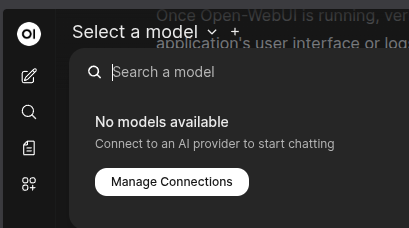
Network isolation and incorrect URL configuration are the primary reasons Open WebUI fails to detect Ollama models.
- Host Binding: If Ollama runs on the host, add Environment="OLLAMA_HOST=0.0.0.0" to the Ollama systemd service to allow external connections, then set OLLAMA_BASE_URL in Open WebUI to http://host.docker.internal:11434 or the host's local IP.
I can verify that Ollama is running locally by `curl http://ollama:11434` --> Ollama is running
1 - docker stop open-webui
2 - docker rm open-webui
3 - docker run -d -p 3000:8080 -e OLLAMA_BASE_URL=http://docker.internal -v open-webui:/app/backend/data --name open-webui --restart always ghcr.io/open-webui/open-webui:main
4 - I connected to the docker by running , and then I realise that I needed to use my host IP:
```bash
docker exec -it open-webui /bin/bash
curl http://host.docker.internal:11434
curl: (6) Could not resolve host: host.docker.internal
curl http://localhost:11434
curl: (7) Failed to connect to localhost port 11434 after 0 ms: Couldn't connect to server
url http://1.1.1.1:11434
Ollama is running
```
I made the changes in the Open WebUI --> Settings --> Connections --> Ollama API
## 4 Basic commands
### 1 - Show Linux flavour:
- `cat /etc/issue` ==> Output: `Ubuntu 22.04.5 LTS \n \l`
- `lsb_release -a` ==> Output:
```bash
No LSB modules are available.
Distributor ID: Ubuntu
Description: Ubuntu 22.04.5 LTS
Release: 22.04
Codename: jammy
```
### 2 - mpv
- Watch a youtube video:
`mpv --ytdl-format=best "https://youtu.be/Cwm6krslrOc?si=vODFbOAlI6inrhWR"`
### 3 - rsync
Using rsync:
`rsync -av [source_folder/] [destination_folder/]`
-a: Archive mode, which preserves file attributes, permissions, timestamps, etc.
-v: Verbose mode, which provides detailed output about the transfer.
Example:
Suppose you want to copy a folder named SourceFolder from /media/username/Drive1/ to /media/username/Drive2/.
```
rsync -av /media/username/Drive1/SourceFolder/ /media/username/Drive2/
```
Note the trailing slash on SourceFolder. This tells rsync to copy the contents of the folder rather than creating a new directory with the same name.
### 4 - Disks
4.1 - du
In Linux, you can use the du command to check the size of a folder in human-readable format. Here's how:
`du -h [folder_name]`
```
du -sh /path/to/folder # shows the total size of the folder and its contents
du -sh /path/to/folder/ | less # shows the size of the folder and its contents, and pipes the output to less for easier reading
```
4.2 - df
Check free space on all disks:
```
df -h
```
This will display information about all mounted file systems, including the disk you're using. The -h option makes the output human-readable (e.g., 1K, 234M, 1.2G).
## 5 Docker
I have not idea how to use containers or how to administrate them. I do know that they are powerfull and at work I need to troubleshoot some servers that they run containers on it. So, let's learn a bit about it.
If you want to see all containers (both running and stopped), you can use the -a or --all option:
```bash
docker ps -a
```
This will give you a comprehensive list of all containers, allowing you to quickly identify which ones are running and which are stopped.
Here's an example of what the output might look like:
```bash
CONTAINER ID IMAGE COMMAND CREATED STATUS PORTS NAMES
123456789abc my-web-app "python app.py" 2 hours ago Up 2 hours 0.0.0.0:8080->80/tcp my-web-container
def456789ghi my-db "mysqld --datadir=..." 3 days ago Up 3 days 3306/tcp my-db-container
```
Connect to the docker:
```bash
docker exec -it open-webui /bin/bash
```
## 6 Small project
### NAS
1. - Analysis data to be backed up.
2. - Got into a unified data backup.
3. - Consolidate all the data into 1 place --> Clone it
4. - Think big, NAS with at least 2 RAID disk
#### 1.Analysis data to be backed up.
- 2 TB External drive (HDD 3.5-inch)
- 1 TB External drive (HDD 2.5-inch)
I think that I should consolidate everything into less than 1TB, then clone them.